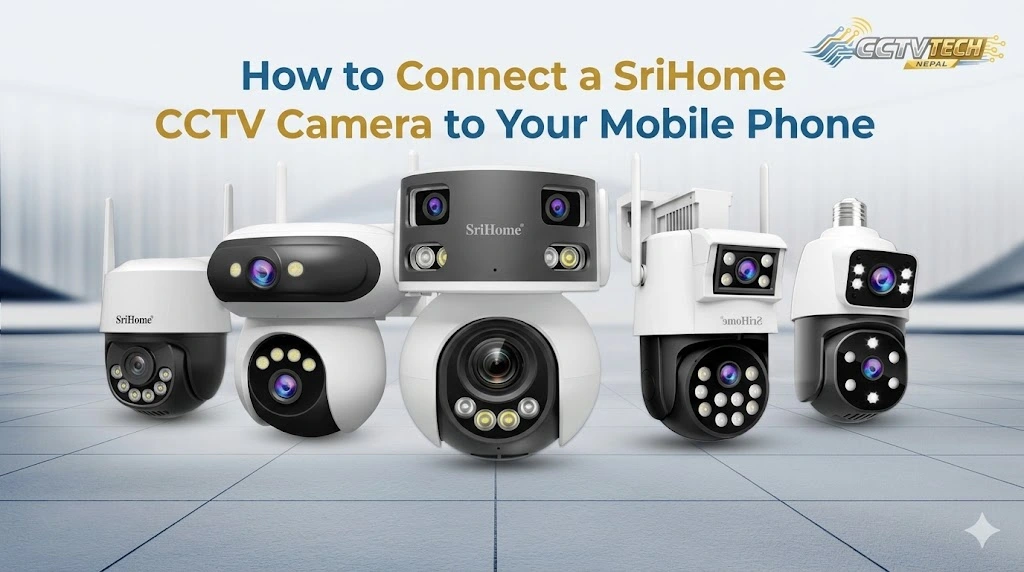
Setting up your SriHome camera is straightforward and takes only a few minutes. Start by downloading the SriHome app from the Google Play Store or Apple App Store, then create an account or log in. Power on your camera and look for a flashing LED or listen for a voice prompt indicating it’s ready.
Initial Setup for Adding the Camera
- Make sure your phone is connected to a 2.4 GHz Wi-Fi network.
- Download and install the SriHome app from the Play Store or App Store.
- After installation, grant all required permissions to the SriHome app.
- Sign up using your email address, or log in using the Facebook option.
Note: If signing up with your email, do not use special characters in the password field (e.g. @, -, #).
Adding Your Camera
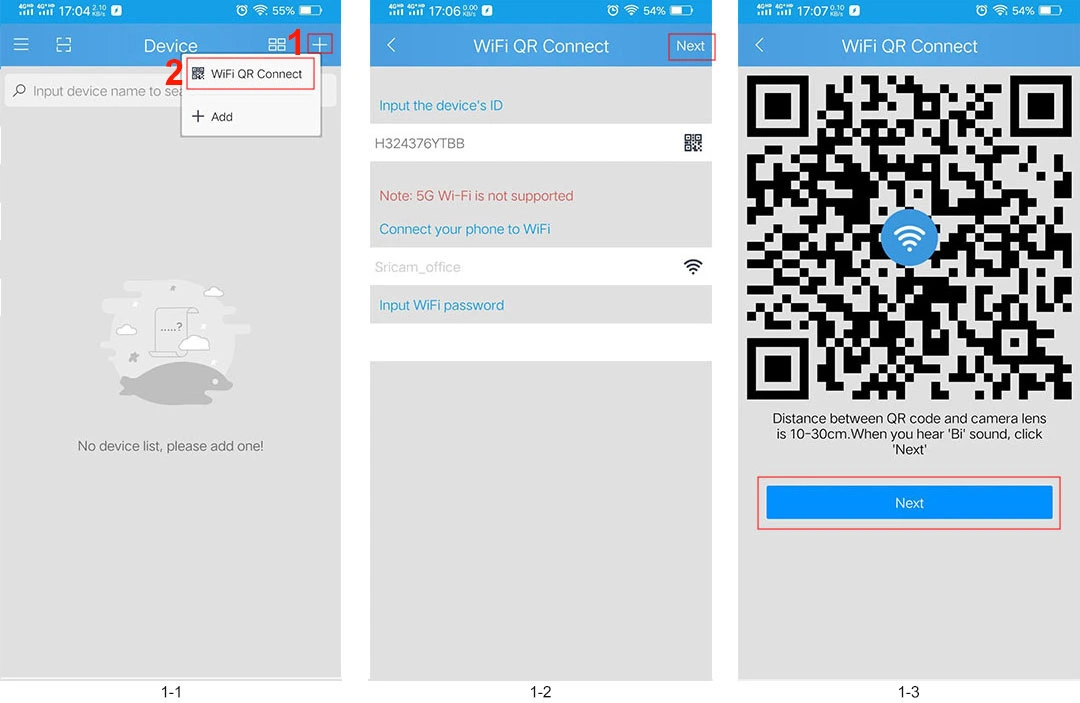
- After logging in, tap the “+” button in the top-right corner to add a new device.
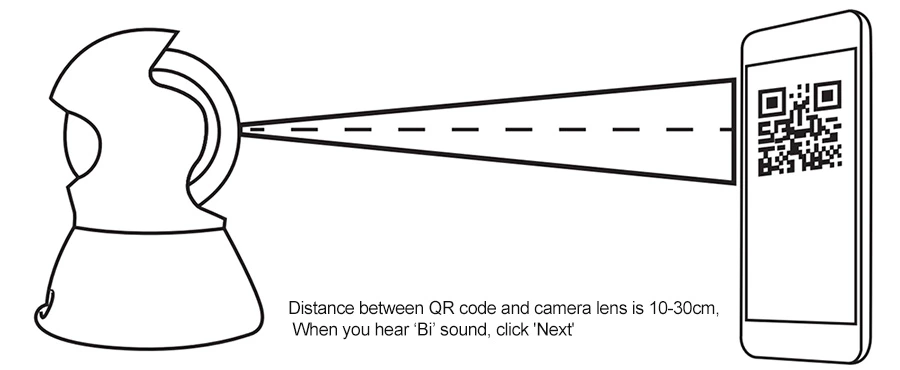
- Select “Scan QR Code” to automatically retrieve your camera’s serial number, or enter it manually in the field provided.
- Tap “Next” to proceed.
- Enter your Wi-Fi password and tap “Next”.
- Give your camera a name and enter the default password: 888888.
- Tap “Next” to complete the setup.
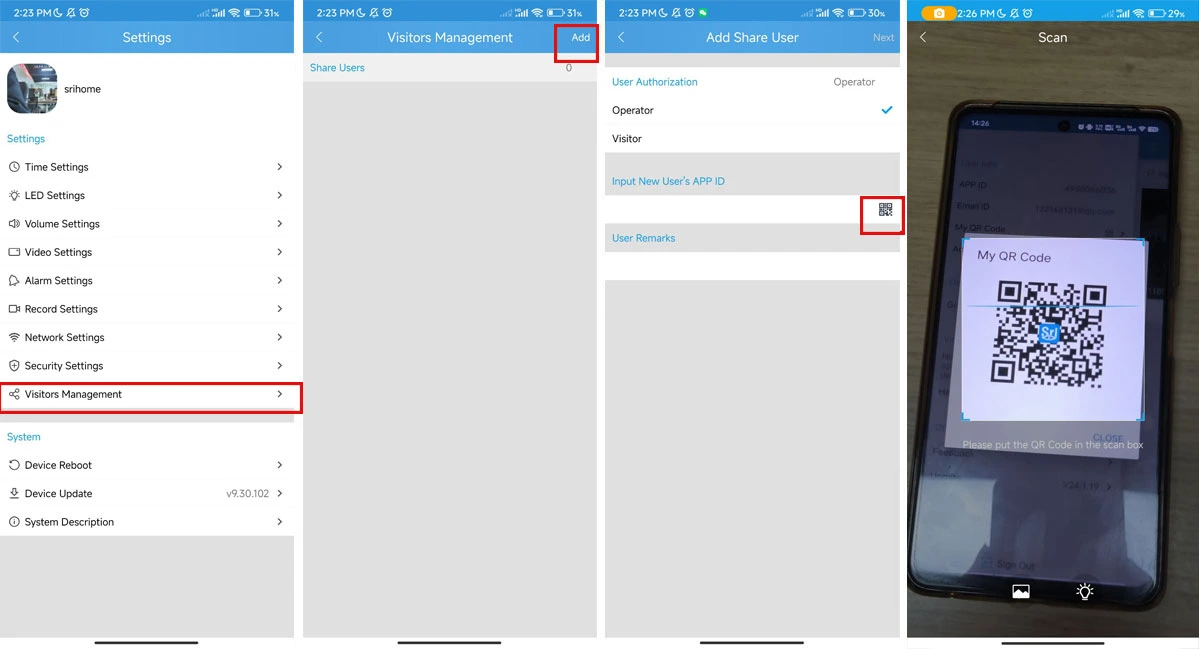
How to Share a CCTV Camera with Other Users
When a device is added to a phone for the first time, that phone becomes the Admin. Only the admin can share access to the camera with other users.
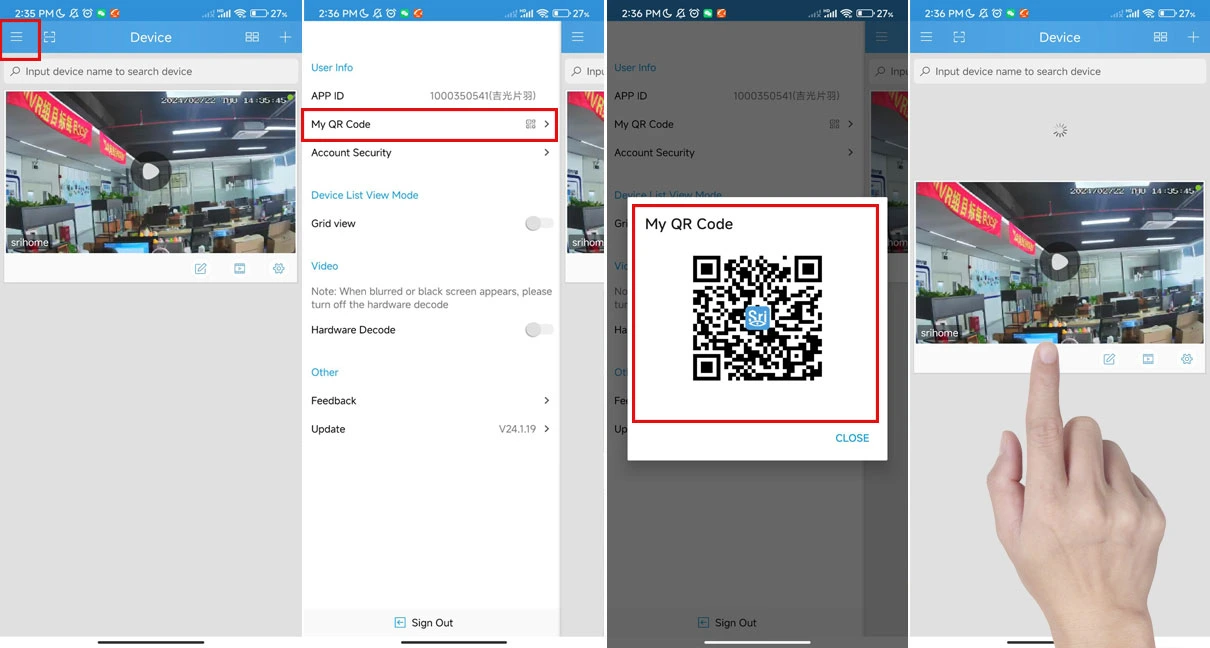
Step 1: On the New User’s Phone
- Install the SriHome app and log in.
- Open the Menu and navigate to “My QR Code”.
- A unique QR code will be generated — keep this screen open.
Step 2: On the Admin Phone (where the CCTV is already added)
- Open the Menu.
- Go to “Visitor Management”.
- Tap the “+” or Add button in the top-right corner.
- Tap “Input New User’s App ID” and scan the QR code displayed on the new user’s phone.
- Assign the appropriate access level — Operator or Visitor.
- Add a remark for identification (e.g., the user’s name).
Tap “Next” to complete the process.